Hello,
Recently there has been a splurge of new comers, who don’t necessarily know how to use the IFC, and all the functions it has. In this post, I will cover how to do everything.
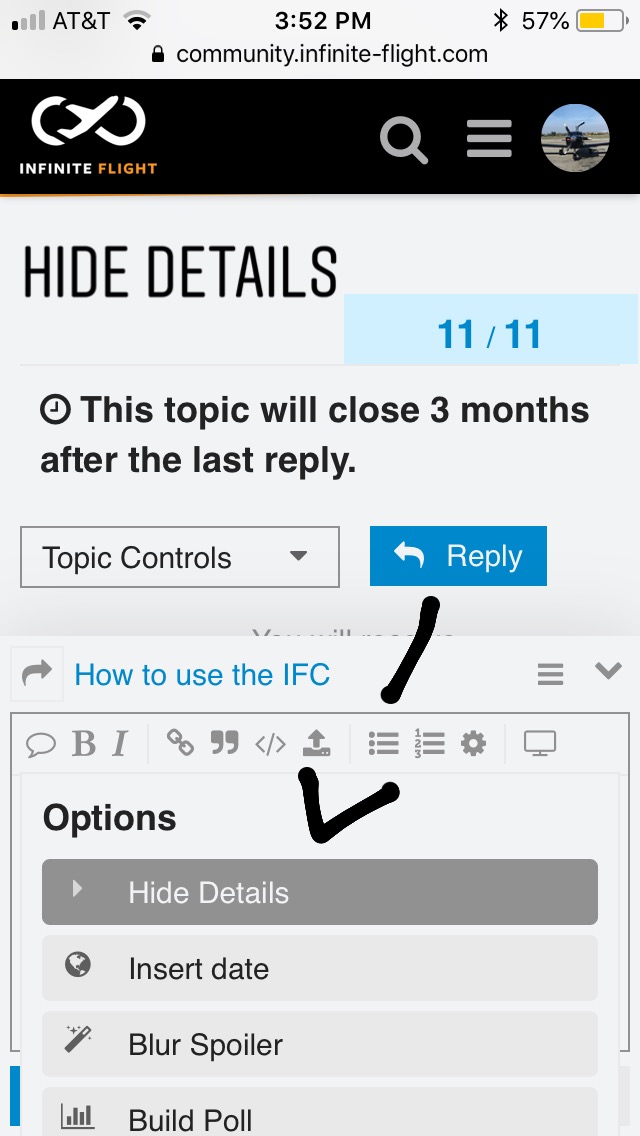
Hide Details
Want to type something that you don’t want to be clearly shown? Click the settings icon on the top right, and type what you want in between the 2 boxes, naming your words on the top in between the brackets. Aka, what I am doing right now. 
Bold
Want to make your words bold? On the top left, you’ll see a “B”. Click that, and type your words in between the two asterisks.

Italics
Sometimes you need to make a word or two italicized. To do so, hit the “I”, located on the top left by the “B”.

"Hyperlink”
Want to link something that anyone can easily click and read? Click the link icon, insert the URL, and name it on the box below.

Image Uploading
Have an image you would like to upload? Click the arrow in the top middle that appears to be pointing up, and then select the file you would like to upload.

Wait for the “uploading…” to change to the picture name, or the percent uploaded to go to 100% and then disappear. You can also use the preview button to see if it has uploaded.
Indenting
One of those English buffs who likes to indent? No problem! Simply hit the arrows on the top middle and that have the slash on between them.

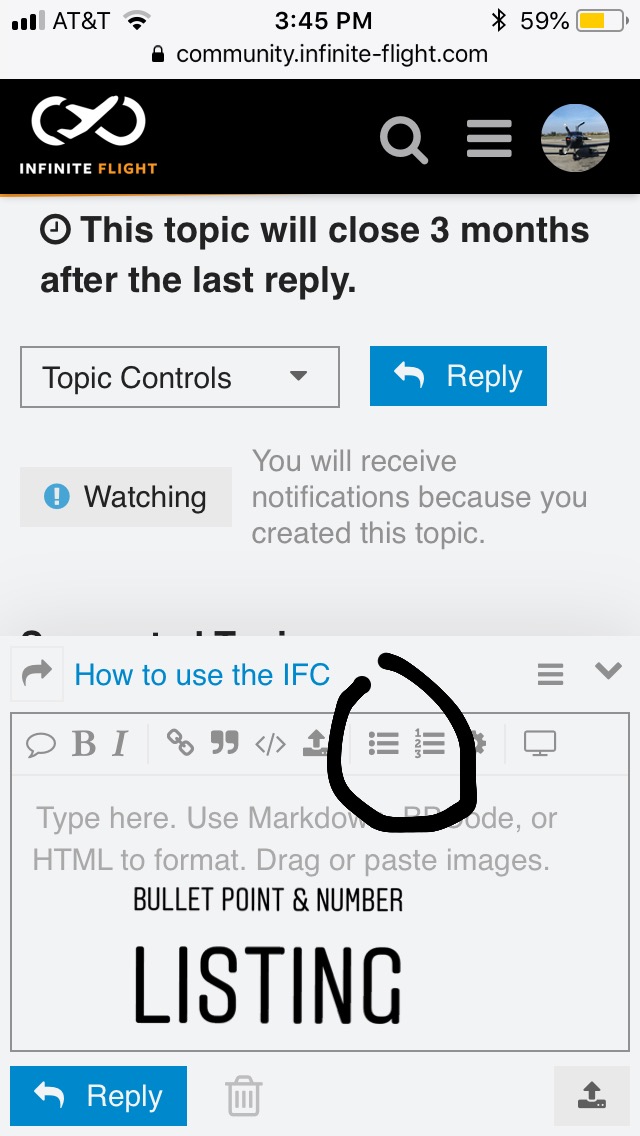
Bullet points and number listing
A lot of times we need to bullet point things, and sometimes even number things off. To do so is quite simple. On the top right, you will see a bullet point and number list icon. Click whichever one you what to use, and a bullet list and number list will automatically generate.
Blockquotes
Blockquotes aren’t the most common feature on the IFC, but if you wish to use them, hit the icon - ” and it will make a Blockquote for you.

"Blurspoilers”
Similar to the “hide details” feature, Discourse also has a feature where you can hide text, which can be readible if a member clicks the blurred text. To blur your text, click the settings icon, then click “Blur Spoiler”.

"Polls”
Polls are used to see what the community thinks on a certain matter. To make one, click the settings icon, and then click “Build Poll”.

Date Insert
Jackbot, aka @Balloonchaser shows us how to insert dates in this topic:
Discourse Update - "Insert Date" Feature

Page Break
To seperate parts of your post simply type;
____
To get a result like this:
Large Heading Text
Make text bigger?
Before your writing, simply type a #. For example
# Heading
Gives the result of;
Heading
Large and Small Normal Text
Here’s another way to make your text bigger or smaller… without the bold.
Use <big text> to make:
THIS.
You can use <small text> to make:
this.
Text Surrounded by a box
<kbd>
Gives the result of
Text box
Table
One that has been asked quite often is a grade table. To achieve this you must use the following format
| (Option 1) | (Option 2) | (Option 3) |
|---|---|---|
| Column 1 | Column 2 | Column 3 |
And so on
This turns out like;
| (Option 1) | (Option 2) | (Option 3) |
|---|---|---|
| Column 1 | Column 2 | Column 3 |
Centered Text
To get centered text, use:
<div align=Center>
Giving a result of;
No-Link Blue Text
This works similarly to hyperlinks. To get a non-link blue text, use:
[TEXT]()
…And you will have this:
TEXT
Note that the blank parentheses will not allow the text to function as a link. This can be used simply as decoration or emphasis.
Text underliner
Do you want to underline your text?
Just type:
[u]underline[/]
Results:
underline
Green Text
< ins >
Result
Test
Red Crossed Out Text
< del > (without the spaces in between the alligator mouth things)
To get the result of Test
Thanks for reading and I hope this topic will confuse any confusion regarding use of the IFC. Also, thanks to @Josh for some extra content I did not originally display.
Safe flying!